我们经常会在现实需求中碰到这样的场景,如下图所示。
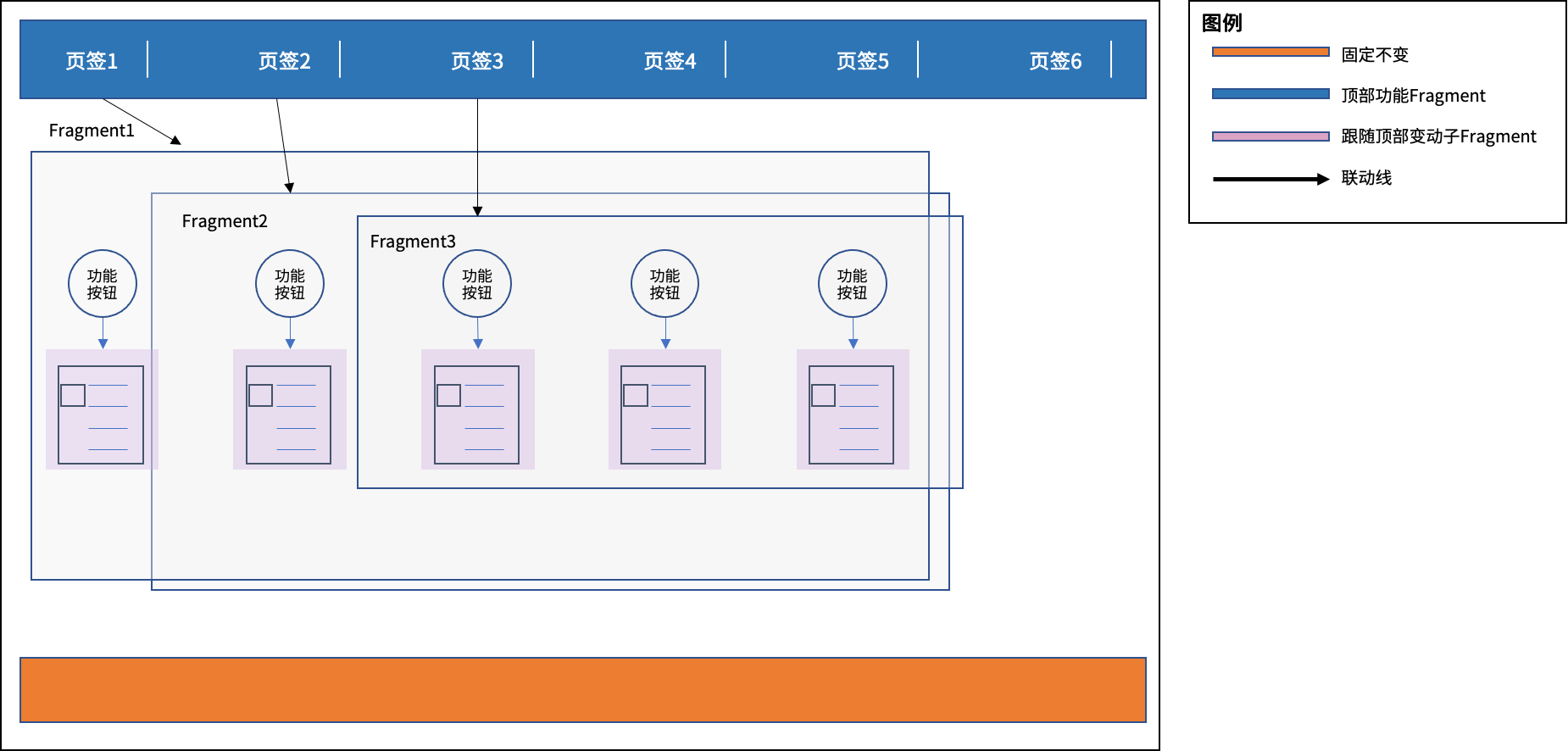
一个手机APP的首页,一般在布局时会有:
永久固定区;
一级联动区;
二级(多级)联动区;
如果是一级联动区域,它跟随着固定区域的功能按钮点击而不断变化这个还好理解一些。烦是烦在二级(甚至多级联动)如我图中所标出的深蓝色部分,深蓝色部分有一排功能按钮,然后当用户在点击这些按钮时下部的Fragment也在跟随着顶部的功能按钮(页签)的点而变化着不同的内容。
而。。。更复杂的是每一个页签的点击时,在本Fragment里还有二级按钮(圆型),而在点击这些二级按钮时,本身内部还有一堆孙子Fragment的内容也在发生着变化。
我们来看一个实际生产界面的例子你们就可以感受到上述我描述的场景了。
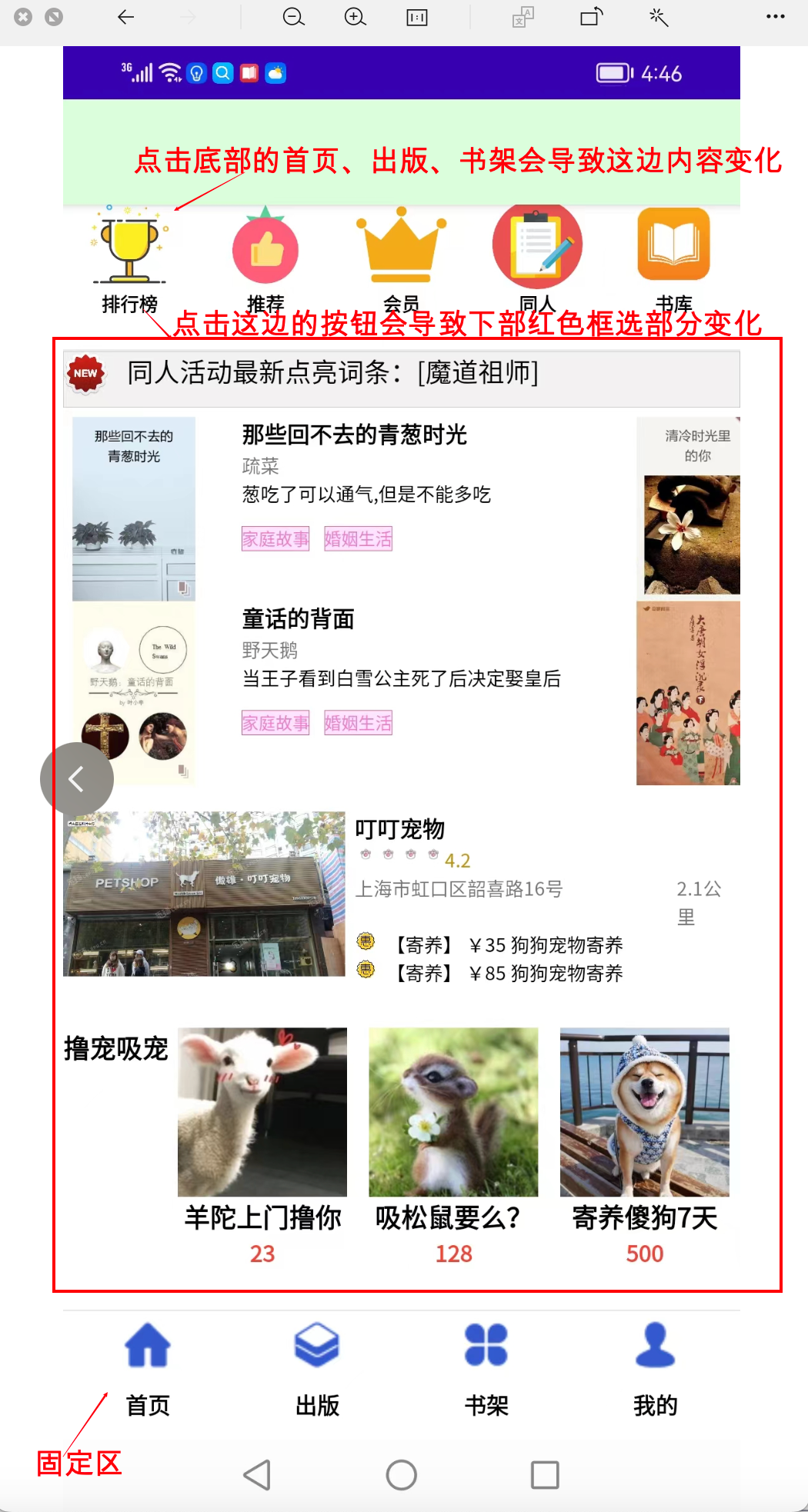
这边顶部的按钮为一级Fragment,它跟随着下部的按钮联动。
而这边用红色方框框起来的区域就是我说的,它需要被嵌在一级Fragment里的。
比如说点击“排行榜”下部显示的内容和点击“推荐”是完全不一样的。
现在再来看一块子区域:下部的“撸宠吸宠”,这部分也竟然被业务提出了要可以切换比如说有一个按钮叫“换一批”的需求。因此,这边又是一个个的“三行四列”,“单行三列”,“2行单列”的孙子fragment。
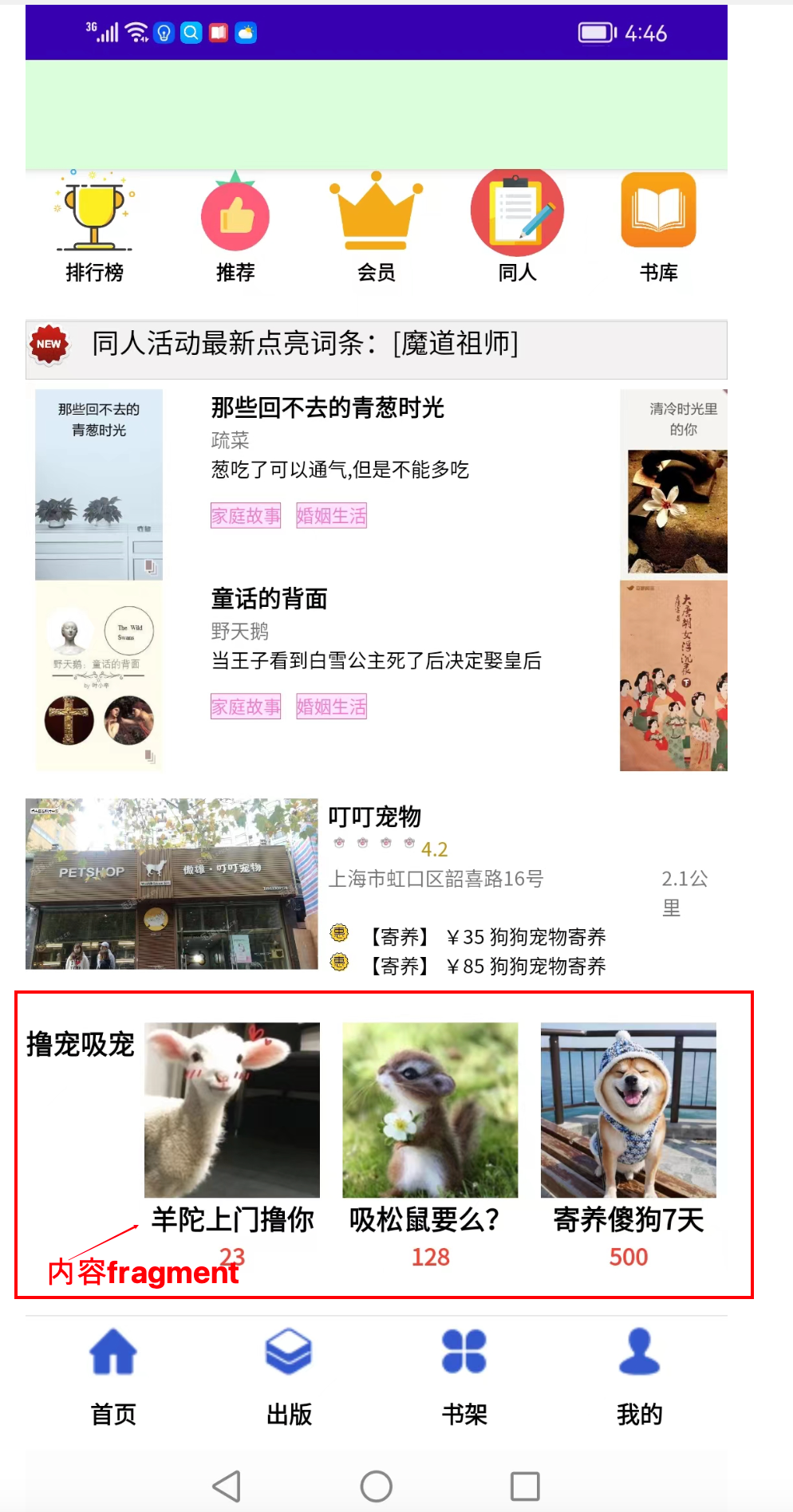
首先我们说嵌套Fragment调用这种用法是合理的,也是存在的。在现实中应用到的场景实在是太多太多。问题是很多初学者在使用时,就直接在Fragment嵌套时当Fragment应用在Activity里一样那样用了。甚至运行时由于Log输出过多疏忽了一些报错,结果呢在有些开发机上运行的好好的而实际在一些真机上或者是换了一台开发机如:windows换mac或者是mac换windows后,报了一堆本来不会报的错而根本无从入手。
这就是Fragment没有完全学好其原理,特别是其生命周期。所以这边我们给出正确的Fragment嵌套的用法。
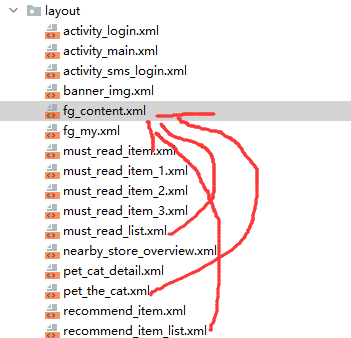
就拿上例来说,我们外层有一个fg_content.xml,在fg_content.xml里我们嵌了多个孙子Fragment。此处:
pet_the_cat(撸猫)
must_read_list(必读)
recommend_item_list(推荐)
以及后面我们还会增加一些孙子Fragment,它们都从属于fg_content.xml。
来看下面代码。
<?xml version="1.0" encoding="utf-8"?>
<layout xmlns:android="http://schemas.android.com/apk/res/android"
    xmlns:app="http://schemas.android.com/apk/res-auto"
    xmlns:tools="http://schemas.android.com/tools">
    <!--绑定数据-->
    <data>

        <variable
            name="viewModel"
            type="com.mkyuan.aset.mall.android.home.HomeContentViewModel" />
    </data>

    <LinearLayout
        android:layout_width="match_parent"
        android:layout_height="match_parent"
        android:background="@color/bg_white"
        android:orientation="vertical"
        android:clipChildren="false"
        android:showDividers="end">

        <com.google.android.material.tabs.TabLayout
            android:id="@+id/tl"
            android:layout_width="match_parent"
            android:layout_height="30dp"
            android:background="@color/white"
            app:tabIndicatorColor="@color/tab_indicator_color"
            app:tabMaxWidth="200dp"
            app:tabMinWidth="100dp"
            app:tabMode="scrollable"
            app:tabSelectedTextColor="@color/black"
            app:tabTextAppearance="@style/MyCustomTabText"
            app:tabTextColor="@color/black" />

        <com.youth.banner.Banner
            android:id="@+id/ad_banner"
            android:layout_width="match_parent"
            android:layout_height="100dp"
            android:gravity="center"
            app:banner_loop_time="2000"
            app:banner_radius="10dp" />

        <FrameLayout
            android:id="@+id/fg_recommend"
            android:layout_width="match_parent"
            android:layout_height="80dp"
            android:layout_gravity="center_horizontal"
            android:layout_marginTop="5dp" />

        <ImageView
            android:layout_width="match_parent"
            android:layout_height="1dp"
            android:background="#ECECEC" />

        <LinearLayout
            android:layout_width="match_parent"
            android:layout_height="30dp"
            android:background="@drawable/layout_gray_background"
            android:orientation="horizontal">

            <ImageView
                android:layout_width="24dp"
                android:layout_height="24dp"
                android:layout_gravity="top"
                android:scaleType="fitStart"
                android:src="@mipmap/newest_1"></ImageView>

            <TextView
                android:layout_width="match_parent"
                android:layout_height="match_parent"
                android:layout_gravity="top"
                android:layout_marginLeft="10dp"
                android:includeFontPadding="false"
                android:text="同人活动最新点亮词条:[魔道祖师]"
                android:textColor="@color/black" />
        </LinearLayout>
        <androidx.viewpager.widget.ViewPager
            android:id="@+id/vpMustRead"
            android:layout_marginLeft="5dp"
            android:layout_marginRight="5dp"
            android:layout_marginTop="5dp"
            android:layout_marginBottom="5dp"
            android:layout_width="300dp"
            android:layout_height="200dp"
            android:layout_gravity="top"
            android:clipChildren="false">
        </androidx.viewpager.widget.ViewPager>

        <FrameLayout
            android:id="@+id/fg_nearbystore"
            android:layout_width="match_parent"
            android:layout_height="wrap_content"
            android:layout_gravity="center_horizontal"
            android:layout_marginTop="5dp" />

        <FrameLayout
            android:id="@+id/fg_petthecat"
            android:layout_width="match_parent"
            android:layout_height="150dp"
            android:layout_gravity="center_horizontal"
            android:layout_marginTop="5dp" />
    </LinearLayout>

</layout>
注意此处的:<FrameLayout android:id="@+id/fg_petthecat"这边就是用来显示孙子Fragment-pet_the_cat.xml的。
于是我们来看pet_the_cat.xml。
它是用一个Fragment来加载的。
先来看它的前端layout。
<?xml version="1.0" encoding="utf-8"?>
<layout xmlns:android="http://schemas.android.com/apk/res/android"
    xmlns:app="http://schemas.android.com/apk/res-auto"
    xmlns:tools="http://schemas.android.com/tools">

    <LinearLayout
        android:layout_width="match_parent"
        android:layout_height="match_parent"
        android:orientation="horizontal">

        <TextView
            android:layout_width="wrap_content"
            android:layout_height="wrap_content"
            android:includeFontPadding="false"
            android:padding="0dp"
            android:text="撸宠吸宠"
            android:textColor="@color/black"
            android:textSize="14dp"
            android:textStyle="bold" />

        <GridView
            android:id="@+id/grid_petthecat"
            android:layout_width="match_parent"
            android:layout_height="match_parent"
            android:gravity="center"
            android:horizontalSpacing="5px"
            android:numColumns="3"
            android:stretchMode="columnWidth"
            android:verticalSpacing="5px" />
    </LinearLayout>

</layout>
而这个pet_the_cat里要用到Adapter即撸宠吸宠的“具体内容了”。我们下面顺便再来看pet_cat_detail.xml
<?xml version="1.0" encoding="utf-8"?>
<layout xmlns:android="http://schemas.android.com/apk/res/android"
    xmlns:app="http://schemas.android.com/apk/res-auto"
    xmlns:tools="http://schemas.android.com/tools">

    <data>
        <variable
            name="petCatBean"
            type="com.mkyuan.aset.mall.android.home.petthecat.PetTheCatBean"/>
    </data>

    <LinearLayout
        android:layout_width="match_parent"
        android:layout_height="match_parent"
        android:orientation="vertical">

        <ImageView
            android:id="@+id/ivPetCatImg"
            android:layout_width="90dp"
            android:layout_height="90dp"
            android:layout_gravity="center"
            android:scaleType="fitStart"
            app:petImgUrl="@{petCatBean.pegImg}" />

        <TextView
            android:id="@+id/tvPetCatDescr"
            android:layout_width="wrap_content"
            android:layout_height="wrap_content"
            android:layout_gravity="center"
            android:gravity="top"
            android:includeFontPadding="false"
            android:padding="0dp"
            android:text="@{petCatBean.descrText}"
            android:textColor="@color/black"
        android:textSize="14dp"
        android:textStyle="bold" />

        <TextView
            android:id="@+id/tvPetCatPrice"
            android:layout_width="wrap_content"
            android:layout_height="wrap_content"
            android:layout_gravity="center"
            android:gravity="top"
            android:includeFontPadding="false"
            android:padding="0dp"
            android:text="@{petCatBean.price}"
            android:textColor="@color/custom_red"
            android:textSize="12dp"
            android:textStyle="bold" />
    </LinearLayout>
</layout>
知道了样式文件后关键我们来看在fg_content里如何套入这个pet_the_cat的layout的。
package com.mkyuan.aset.mall.android.home.petthecat;

import android.content.Context;
import android.os.Bundle;
import android.util.Log;
import android.view.LayoutInflater;
import android.view.View;
import android.view.ViewGroup;
import android.widget.GridView;

import androidx.databinding.DataBindingUtil;
import androidx.fragment.app.Fragment;

import com.mkyuan.aset.mall.android.BR;
import com.mkyuan.aset.mall.android.R;
import com.mkyuan.aset.mall.android.databinding.PetTheCatBinding;
import com.mkyuan.aset.mall.android.home.DatabindingGridAdapter;
import com.mkyuan.aset.mall.android.util.AsetMallConstants;

import java.util.ArrayList;
import java.util.List;

public class FragmentPetTheCat extends Fragment {
    protected static final String TAG = "AsetMall";
    private Context ctx;
    //private Banner adBanner;
    private GridView petCatGridView;
    private PetTheCatBinding dataBinding;

    @Override
    public View onCreateView(LayoutInflater inflater, ViewGroup container,
                             Bundle savedInstanceState) {
        ctx = this.getActivity();
        dataBinding = DataBindingUtil.inflate(inflater, R.layout.pet_the_cat, container,
                false);
        petCatGridView = dataBinding.gridPetthecat;
        Log.i(TAG, ">>>>>FragmentPetTheCat->get dataBinding");
        initPetTheCatDataList();
        return dataBinding.getRoot();

    }

    private void initPetTheCatDataList() {
        List<PetTheCatBean> list = new ArrayList<PetTheCatBean>();
        list.add(new PetTheCatBean(AsetMallConstants.CDN_URL + "/img/petthecat/pet_the_cat_1.jpg",
                "羊陀上门撸你", "23"));
        list.add(new PetTheCatBean(AsetMallConstants.CDN_URL + "/img/petthecat/pet_the_cat_2.jpg",
                "吸松鼠要么?", "128"));
        list.add(new PetTheCatBean(AsetMallConstants.CDN_URL + "/img/petthecat/pet_the_cat_3.png",
                "寄养傻狗7天", "500"));
        DatabindingGridAdapter<PetTheCatBean> adapter =
                new DatabindingGridAdapter<PetTheCatBean>(ctx,
                R.layout.pet_cat_detail, list,
                BR.petCatBean);
        petCatGridView.setAdapter(adapter);
    }
}
我们这边可以看到,这个Fragment通过我们在之前MVVM与ListView课程内使用到的那个“万能DataBinding Adapter“了。它把pet_cat_detail加载到了一个1行3列的GridView里进行显示。
现在我们就来看在fg_content里,怎么显示这个子Fragment。
fg_content的后端Java代码为FragmentContent.
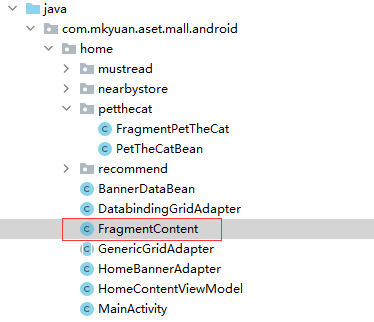
private FgContentBinding dataBinding;
private FragmentManager fManager;
private Fragment fragmentRecommend;
private Fragment fragmentNearbyStore;
private Fragment fragmentPetTheCat;

dataBinding = DataBindingUtil.inflate(inflater, R.layout.fg_content, container, false);
fManager = getChildFragmentManager();
if (fragmentPetTheCat == null) {
   fragmentPetTheCat = new FragmentPetTheCat();
   fTransaction.add(R.id.fg_petthecat, fragmentPetTheCat);
}
fTransaction.show(fragmentPetTheCat);
fTransaction.commit();
这边我们可以看到有这么一行,特别关键,要敲黑板了:
fManager = getChildFragmentManager();而不是我们在Fragment使用那一课里使用的:fManager = getFragmentManager();。
这是因为我们要嵌套子Fragment,因此对于子Fragment来说它的parent可不一样,很多人正是在这边烦了错。
接着我们回到fg_content的孙子Fragment-pet_the_cat.xml的后端代码-FragmentPetTheCat.java 。
在FragmentPetTheCat.java的public View onCreateView最后return你必须使用以下写法:
return dataBinding.getRoot();//这边要用dataBind.getRoot()返回的view再返回activity,因为此处非MainActivity即:子Fragment向父Fragment返回view时你已经不能再用
Android入门第47天-Fragment的基本使用中以下这样的写法了,是错误的:
return view;正确的写法为:
return dataBinding.getRoot();要感受到这个区别,各位不妨自己动动手吧。
我得到了一个包含嵌套链接的表单。编辑时链接字段为空的问题。这是我的表格:Editingkategori{:action=>'update',:id=>@konkurrancer.id})do|f|%>'Trackingurl',:style=>'width:500;'%>'Editkonkurrence'%>|我的konkurrencer模型:has_one:link我的链接模型:classLink我的konkurrancer编辑操作:defedit@konkurrancer=Konkurrancer.find(params[:id])@konkurrancer.link_attrib
这道题是thisquestion的逆题.给定一个散列,每个键都有一个数组,例如{[:a,:b,:c]=>1,[:a,:b,:d]=>2,[:a,:e]=>3,[:f]=>4,}将其转换为嵌套哈希的最佳方法是什么{:a=>{:b=>{:c=>1,:d=>2},:e=>3,},:f=>4,} 最佳答案 这是一个迭代的解决方案,递归的解决方案留给读者作为练习:defconvert(h={})ret={}h.eachdo|k,v|node=retk[0..-2].each{|x|node[x]||={};node=node[x]}node[
下面例子中的Nested和Child有什么区别?是否只是同一事物的不同语法?classParentclassNested...endendclassChild 最佳答案 不,它们是不同的。嵌套:Computer之外的“Processor”类只能作为Computer::Processor访问。嵌套为内部类(namespace)提供上下文。对于ruby解释器Computer和Computer::Processor只是两个独立的类。classComputerclassProcessor#Tocreateanobjectforthisc
我的假设是moduleAmoduleBendend和moduleA::Bend是一样的。我能够从thisblog找到解决方案,thisSOthread和andthisSOthread.为什么以及什么时候应该更喜欢紧凑语法A::B而不是另一个,因为它显然有一个缺点?我有一种直觉,它可能与性能有关,因为在更多命名空间中查找常量需要更多计算。但是我无法通过对普通类进行基准测试来验证这一点。 最佳答案 这两种写作方法经常被混淆。首先要说的是,据我所知,没有可衡量的性能差异。(在下面的书面示例中不断查找)最明显的区别,可能也是最著名的,是你的
我有一个名为posts的模型,它有很多附件。附件模型使用回形针。我制作了一个用于创建附件的独立模型,效果很好,这是此处说明的View(https://github.com/thoughtbot/paperclip):@attachment,:html=>{:multipart=>true}do|form|%>posts中的嵌套表单如下所示:prohibitedthispostfrombeingsaved:@attachment,:html=>{:multipart=>true}do|at_form|%>附件记录已创建,但它是空的。文件未上传。同时,帖子已成功创建...有什么想法吗?
我真的为这个而疯狂。我一直在搜索答案并尝试我找到的所有内容,包括相关问题和stackoverflow上的答案,但仍然无法正常工作。我正在使用嵌套资源,但无法使表单正常工作。我总是遇到错误,例如没有路线匹配[PUT]"/galleries/1/photos"表格在这里:/galleries/1/photos/1/edit路线.rbresources:galleriesdoresources:photosendresources:galleriesresources:photos照片Controller.rbdefnew@gallery=Gallery.find(params[:galle
目录前言滤波电路科普主要分类实际情况单位的概念常用评价参数函数型滤波器简单分析滤波电路构成低通滤波器RC低通滤波器RL低通滤波器高通滤波器RC高通滤波器RL高通滤波器部分摘自《LC滤波器设计与制作》,侵权删。前言最近需要学习放大电路和滤波电路,但是由于只在之前做音乐频谱分析仪的时候简单了解过一点点运放,所以也是相当从零开始学习了。滤波电路科普主要分类滤波器:主要是从不同频率的成分中提取出特定频率的信号。有源滤波器:由RC元件与运算放大器组成的滤波器。可滤除某一次或多次谐波,最普通易于采用的无源滤波器结构是将电感与电容串联,可对主要次谐波(3、5、7)构成低阻抗旁路。无源滤波器:无源滤波器,又称
@作者:SYFStrive @博客首页:HomePage📜:微信小程序📌:个人社区(欢迎大佬们加入)👉:社区链接🔗📌:觉得文章不错可以点点关注👉:专栏连接🔗💃:感谢支持,学累了可以先看小段由小胖给大家带来的街舞👉微信小程序(🔥)目录自定义组件-behaviors 1、什么是behaviors 2、behaviors的工作方式 3、创建behavior 4、导入并使用behavior 5、behavior中所有可用的节点 6、同名字段的覆盖和组合规则总结最后自定义组件-behaviors 1、什么是behaviorsbehaviors是小程序中,用于实现
遍历文件夹我们通常是使用递归进行操作,这种方式比较简单,也比较容易理解。本文为大家介绍另一种不使用递归的方式,由于没有使用递归,只用到了循环和集合,所以效率更高一些!一、使用递归遍历文件夹整体思路1、使用File封装初始目录,2、打印这个目录3、获取这个目录下所有的子文件和子目录的数组。4、遍历这个数组,取出每个File对象4-1、如果File是否是一个文件,打印4-2、否则就是一个目录,递归调用代码实现publicclassSearchFile{publicstaticvoidmain(String[]args){//初始目录Filedir=newFile("d:/Dev");Datebeg
ES一、简介1、ElasticStackES技术栈:ElasticSearch:存数据+搜索;QL;Kibana:Web可视化平台,分析。LogStash:日志收集,Log4j:产生日志;log.info(xxx)。。。。使用场景:metrics:指标监控…2、基本概念Index(索引)动词:保存(插入)名词:类似MySQL数据库,给数据Type(类型)已废弃,以前类似MySQL的表现在用索引对数据分类Document(文档)真正要保存的一个JSON数据{name:"tcx"}二、入门实战{"name":"DESKTOP-1TSVGKG","cluster_name":"elasticsear